You need to decide how much of your YouTube video AI should create and which parts still require your judgment.
To create a YouTube AI video, choose a format, write a scene-based script, generate or collect the visuals, record a licensed voiceover, edit every asset into one coherent timeline, and complete YouTube’s AI disclosure when required. AI can shorten production, but you remain responsible for accuracy, originality, copyright, and viewer value.
Choose the video format before choosing tools
The best production method depends on four constraints: your budget, available time, comfort with narration, and need for visual realism. Pick one format before paying for software. Otherwise, you can end up with a script generator, avatar service, video model, and editor that solve overlapping problems.
If you need a broader selection framework, use this guide to choosing the right AI tool for your business needs before committing to a monthly plan.
| Production format | Best fit | Main requirement | Common weakness |
|---|---|---|---|
| AI-assisted screen tutorial | Software guides and demonstrations | Accurate screen recording | Outdated interfaces |
| Faceless narrated video | Education, explainers, and lists | Strong script and varied B-roll | Generic stock footage |
| AI avatar presentation | Training and multilingual delivery | Natural pacing and pronunciation | Mechanical delivery |
| Generative visual story | Fiction, concepts, and visual essays | Character and scene continuity | Inconsistent objects between shots |
| AI-assisted talking-head video | Expert commentary and personal channels | Your recorded performance | More filming time |
A faceless explainer is often the most practical starting point. An AI avatar can save recording time, but it won’t rescue a flat script. Fully generated visual stories demand more revision because characters, clothing, lighting, and locations can shift between clips.
Build the video in seven controlled passes
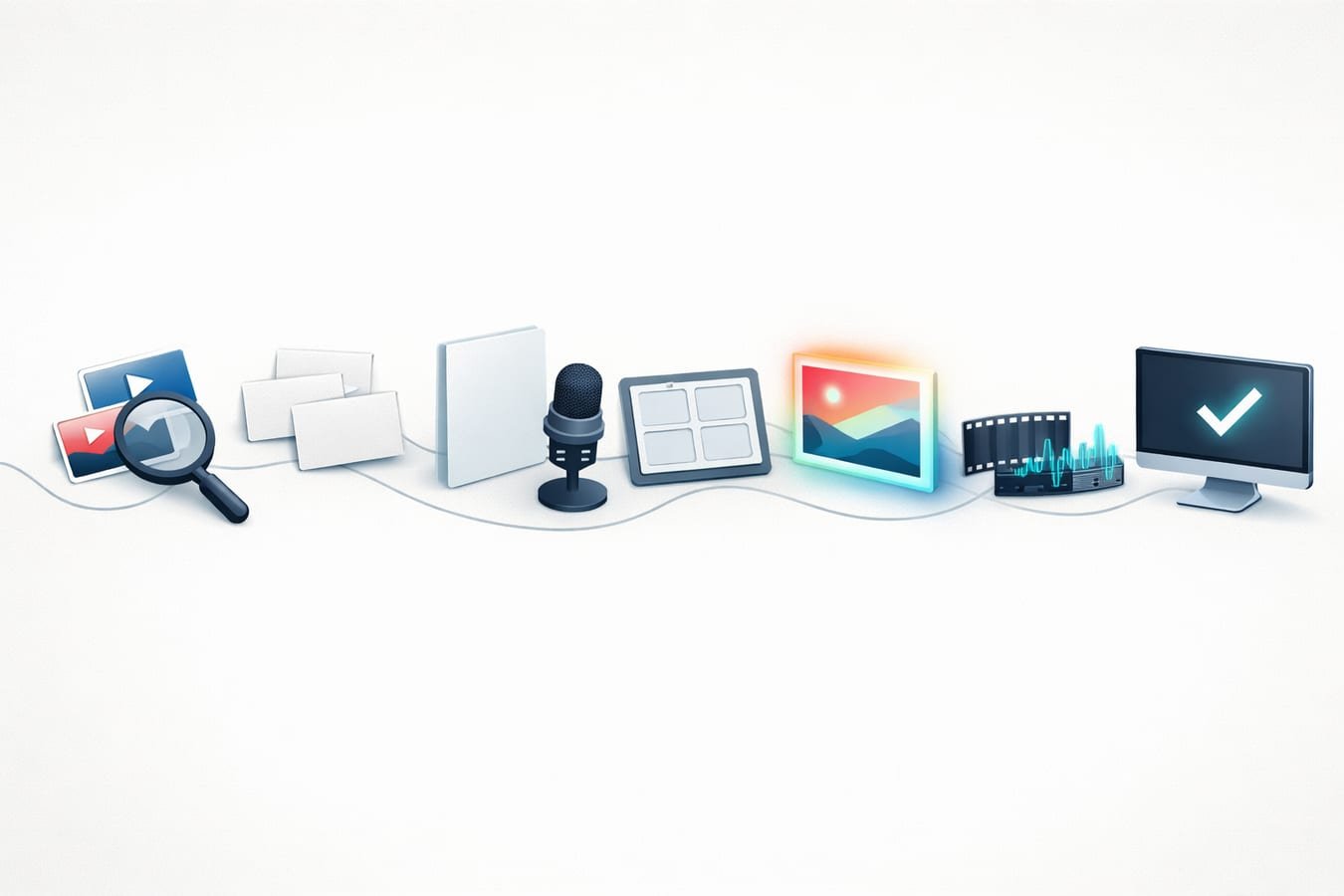
A dependable workflow separates planning, generation, and editing instead of asking one application to produce the finished video. The seven-pass sequence is topic validation, outline, script, shot list, asset generation, timeline edit, and upload review. This structure makes weak material easier to replace without rebuilding the entire project.
- Define one viewer outcome. Write a sentence describing what the viewer should know, feel, or do after watching.
- Validate the topic. Check YouTube search results, recent uploads, and audience comments. AI can organize the findings, but it shouldn’t invent demand.
- Create the outline. Give each section one job and remove points that don’t support the promised outcome.
- Write the narration. Use spoken language, concrete examples, and short transitions between ideas.
- Make a shot list. Assign a visual to each paragraph before generating images or clips.
- Assemble the timeline. Edit narration first, then place visuals against the recorded audio.
- Review the upload. Check claims, rights, sound levels, captions, disclosure, and thumbnail accuracy.
Short AI-generated clips often work better as individual shots than as complete scenes. Generate several focused clips, then control the final rhythm in DaVinci Resolve, Adobe Premiere Pro, CapCut, or another nonlinear editor. A repeatable AI production workflow also makes revisions less chaotic when one asset fails.
Write a script that already contains the visual plan
A useful video script includes more than narration. It identifies the opening promise, evidence, visual treatment, transitions, and final action. For planning purposes, conversational English often lands around an approximate 130 to 150 spoken words per minute, although pauses and demonstrations can reduce that rate.
Use a structured script request
Tell the writing model the topic, audience, desired length, tone, viewer outcome, and information it must avoid inventing. Ask for a two-column draft with narration on one side and visual direction on the other. Specify whether each visual should be a screen capture, diagram, licensed stock clip, generated image, or animated text treatment.
Good prompts define constraints. “Write an engaging script” leaves too much unresolved, while “Write a six-minute beginner tutorial with a 20-second opening, one worked example, and visual directions for every paragraph” gives the model an operational target. The same principle is explained in this framework for writing better AI prompts.
Rewrite the opening yourself
The first draft usually explains before it earns attention. Replace broad introductions with the viewer’s problem, a visible result, or a specific tension. Avoid unsupported claims such as guaranteed income, instant channel growth, or effortless monetization.
Editorial rule: If a sentence could introduce 50 unrelated videos, it’s too generic. Name the exact problem, tool, result, or tradeoff.
Generate voice and visuals without losing continuity
Generate the voiceover before producing the final visual set. The recorded narration determines shot length, emphasis, pauses, and total runtime. Editing silent visuals first often creates expensive rework when the voice track runs longer than expected.
You can use your own voice, a licensed text-to-speech voice, or an avatar platform with built-in narration. Check whether the service permits commercial use, whether it trains on uploaded audio, and whether you have permission to clone the voice. Never imitate an identifiable person without authorization.
For generated visuals, create a small continuity sheet containing the subject’s appearance, setting, color palette, lighting direction, lens style, and aspect ratio. Reuse those details in each prompt. A recurring character described only as “a professional presenter” will probably change between scenes.
- Generate long-form visuals in a 16:9 frame unless the concept requires another ratio.
- Use a 9:16 composition for vertical Shorts and keep important objects away from interface-covered edges.
- Create extra establishing shots, close-ups, and cutaways so you can hide awkward transitions.
- Inspect hands, reflections, background objects, lip movement, and physical interactions frame by frame.
Image generation is useful for still scenes, but motion added later often provides more control than repeatedly generating full video clips. Subtle pans, crops, layered depth, and object animation can turn a strong still into serviceable B-roll.
Edit for a human viewer, not for the generator
The edit is where separate AI outputs become a real video. Start with the voice track, remove dead air, and mark every point where the idea changes. Place visuals at those changes rather than switching shots on an arbitrary timer.
Cut any generated clip that looks impressive but doesn’t explain the narration. This is one of the most common quality failures: the screen stays busy while the viewer receives no useful visual information.
Use practical export settings
For a standard widescreen upload, 1920 × 1080 pixels at a 16:9 aspect ratio is a dependable target. YouTube’s standard computer player uses 16:9, while the player can also adapt to vertical and square footage. Match the export frame rate to the source footage instead of converting everything without a reason.
- Review the complete video with headphones and ordinary speakers.
- Add captions, then correct names, product terms, and punctuation manually.
- Normalize loudness consistently and keep background music below the narration.
- Upload an unlisted version first if you want to inspect processing, captions, and playback quality.
Design the thumbnail separately. A random generated frame may contain distorted objects, false details, or weak composition. The thumbnail should accurately represent the video rather than depicting a result the content never delivers.
Plan the budget around the production bottleneck
AI video costs come from generation credits, voice minutes, stock licenses, editing software, music, storage, and failed generations. Vendor prices change frequently, so the following figures are approximate planning bands rather than quoted subscription prices.
- $0 to $30 per month: free editing software, your own narration, limited image or video generations, and YouTube Audio Library music.
- $30 to $100 per month: one paid generation service plus a voice, design, or editing subscription.
- More than $100 per month: frequent video generation, avatar minutes, premium stock, multiple models, or outsourced review.
Pay first for the bottleneck you encounter every week. If narration sounds poor, buy better voice production before another image model. If your clips lack continuity, a stronger planning process may help more than a higher subscription tier. Tool collecting is overrated; a reliable stack of two or three applications is easier to control.
Handle YouTube disclosure, copyright, and monetization carefully
YouTube requires disclosure for AI-generated or meaningfully altered material that appears realistic, including fabricated scenes involving real people, events, or places. In YouTube Studio, use the AI use setting under Attributes during upload when your content meets the disclosure conditions.
Using AI doesn’t automatically prevent monetization. The larger risk is publishing mass-produced, repetitive, or minimally changed content. YouTube Partner Program reviews can consider whether videos provide original commentary, educational value, a distinct narrative, or a recognizable creative contribution.
Copyright is a separate issue. A permission to use an AI tool doesn’t grant rights to third-party songs, film clips, trademarks, celebrity likenesses, or reference images. Keep records of asset sources, licenses, model terms, and your original project files. Use the YouTube Audio Library or properly licensed music instead of assuming a track is safe because an AI editor recommended it.
- Fact-check names, quotations, dates, screenshots, and numerical claims.
- Don’t present synthetic footage of a real event as documentary evidence.
- Avoid cloned voices or recognizable faces unless you hold clear permission.
- Check the current commercial-use terms for every generation platform.
- Add meaningful narration and editing instead of publishing template variations at scale.
Catch the mistakes that make AI videos feel disposable
Most weak AI videos fail through accumulated friction rather than one dramatic error. The voice stresses the wrong word, the B-roll contradicts the narration, a character changes clothing, and the same transition repeats every few seconds.
- Generating before outlining: You produce attractive clips that don’t fit a coherent argument.
- Using one prompt for the whole video: The result lacks shot-level control and is difficult to revise.
- Accepting the first script: Factual errors and generic phrasing reach the final narration.
- Editing entirely to a template: Every video develops the same pacing, structure, and visual rhythm.
- Skipping a rights log: You can’t prove where music, stock, voices, or reference assets came from.
- Publishing at maximum speed: More uploads won’t compensate for poor retention or interchangeable content.
A sustainable channel needs a point of view. An AI content strategy for planning and optimization can help connect individual videos to a consistent audience need instead of treating each upload as an isolated generation task.
Use this pre-publish quality checklist
Before you publish:
- The opening delivers the title’s promise without a long preamble.
- Every factual claim has been checked against a reliable source.
- The narration sounds natural at normal playback speed.
- Visuals support the spoken point rather than filling space.
- Names, logos, faces, music, footage, and voices are cleared for use.
- The export uses the intended 16:9, 9:16, or square composition.
- Captions have been reviewed after automatic transcription.
- The title and thumbnail accurately represent the finished video.
- The required YouTube AI disclosure has been completed.
Frequently asked questions
Can I create an AI YouTube video for free?
Yes, you can start without a paid subscription by using your own voice, free editing software, limited generation tiers, and music from the YouTube Audio Library. Free plans may restrict resolution, generation credits, commercial rights, or watermark removal, so check each provider’s current terms before publishing.
Can YouTube monetize a fully AI-generated video?
AI use alone doesn’t make a video ineligible for monetization. The final content must still meet YouTube Partner Program policies, including expectations around originality and viewer value. Generic slideshows, scraped scripts, and repetitive template videos create greater risk than carefully researched, edited, and narrated productions.
Do I have to tell viewers that my video uses AI?
You must use YouTube’s disclosure process when realistic content has been meaningfully generated or altered in ways that could mislead viewers about a person, place, scene, event, or AI-generated music. Minor production assistance, such as outlining or caption creation, doesn’t necessarily require the same disclosure.
What is the easiest AI video format for beginners?
A narrated explainer built from screen recordings, licensed stock footage, simple diagrams, and a small number of generated visuals is usually the easiest format to control. It avoids the continuity problems of a fully generated film while still letting AI assist with research organization, scripting, captions, and selected B-roll.
Verify the platform details before you act
Before uploading, check the current YouTube Help pages for AI disclosure, monetization, copyright, Shorts length, and recommended export settings. Then review the license and privacy policy of every tool that handled your script, voice, images, or source footage. Platform controls and model terms can change; the settings shown inside YouTube Studio and the provider’s official documentation should be your final references.
case study : peaceful kids tales
For related reading, see Best AI Tools for Marketers: A Practical Starter Guide.